1. Prerequisites 🚀
Welcome to Kookoo AI. Let's make sure you're ready.
What is Kookoobot?
Kookoobot AI is a 100% automated trading software. Once it is running, no human intervention is required, and you do not need any prior Forex knowledge.
You need an IC Markets Live MT5 Raw Spread account opened through the Kookoobot affiliate link. Demo accounts are not supported for the free license.
Your live account should have at least $1,000 USD for the EA to function well. Starting with less money increases the risk of margin problems.
Affiliate signup is free and safe. It does not give us your broker password, trading control, withdrawal access, or access to your funds.
Use this exact button so your account is linked correctly for free license approval.
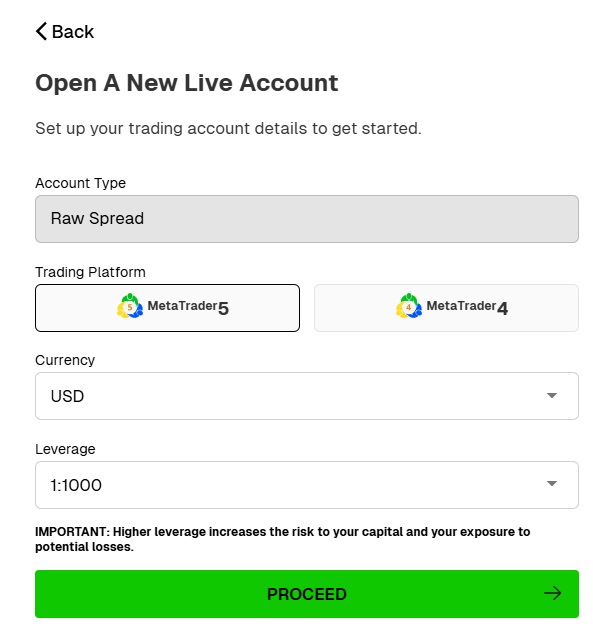
Open IC Markets Live AccountChoose Live Account, MetaTrader 5, and Raw Spread. Do not choose a demo account.
Minimum Capital Requirement
The minimum starting balance required for the robot to function well is $1,000 USD. Trading with less than this exposes your account to significant risk of margin calls.
OS: Windows & Mac 💻
Kookoobot AI is a Windows-native software. It requires Windows 10, 11, or Windows Server.
Apple/Mac Users: You cannot run this directly on macOS. You must use a Windows VPS (Highly Recommended) or a Windows virtual environment like Parallels Desktop.
2. The Computer Rule 🖥️
The robot lives in your MT5 terminal. It needs power.
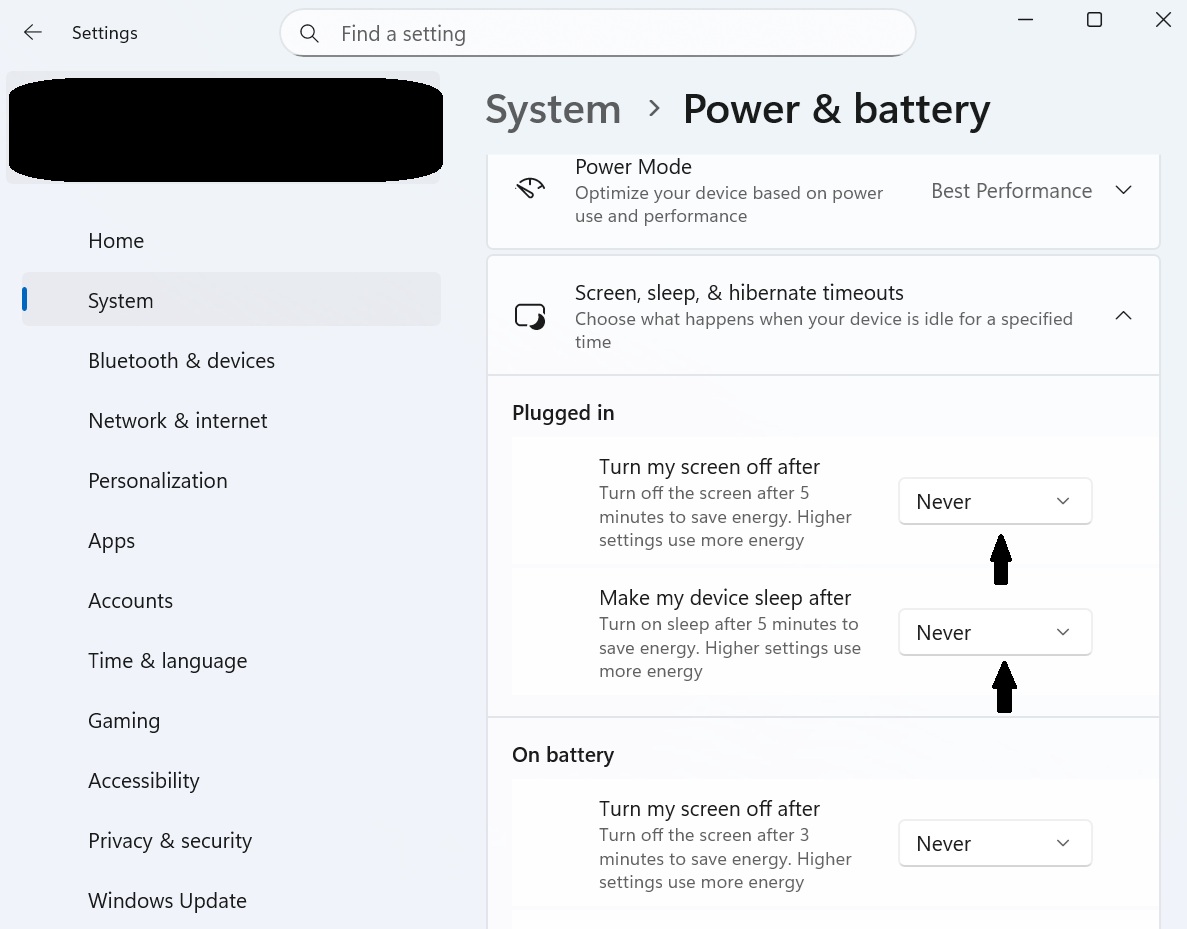
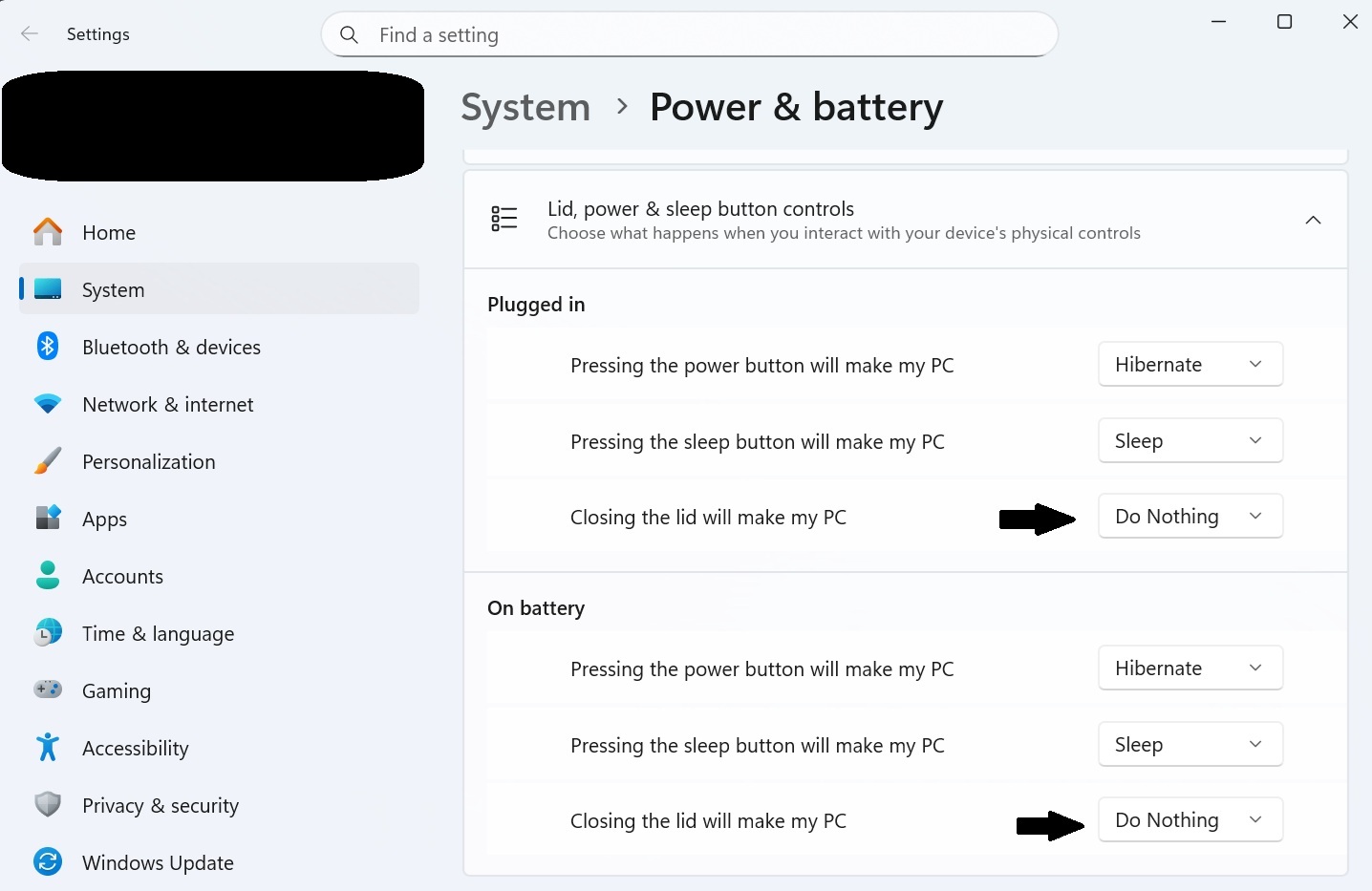
If you run the bot on your home PC, your computer MUST remain powered ON 24 hours a day, 5 days a week while the Forex market is open. If your PC goes to "Sleep" or you close your laptop lid, the robot stops trading immediately.
Solution: Use a VPS (Recommended)
A VPS (Virtual Private Server) is a computer in the cloud that runs 24/7. You log into it, install the robot there, and then you can turn off your home computer.
Recommendation: Many of our users successfully use Contabo for affordable, powerful VPS hosting.
Minimum Technical Specs
- CPU: 2+ Cores (2.0GHz+)
- RAM: 4GB Minimum (8GB Recommended)
- Disk: 20GB Free SSD Space
- Network: Stable 10Mbps+ Connection
3. Create Broker Account 🏦
The free EA license is for IC Markets Live MT5 Raw Spread accounts only.
Account Creation Settings
To receive Kookoobot for free, your IC Markets account must be a Live MT5 Raw Spread account created through our affiliate link. After registration, we will verify your account from our IC Markets partner dashboard before activating your license.
When you click the button below to register for IC Markets, you must look carefully and choose these exact settings during the signup process so the robot functions correctly:
- Account Mode: Live Account only
- Trading Platform: MetaTrader 5
- Account Type: Raw Spread
- Leverage: 1000:1
(If 1000:1 is not available in your region, choose 500:1). Do not choose anything lower.
Live Account Only
The free Kookoobot license is strictly for an IC Markets Live MT5 Raw Spread account. Demo accounts are not supported.
The EA is designed around live IC Markets trading conditions, live symbol setup, and real account execution. Please do not submit a demo account number for activation.
Is Affiliate Signup Safe?
Yes. Being connected through our affiliate link does not give us access to your IC Markets login, password, funds, withdrawals, deposits, open trades, or trading control.
It is completely free for you. It does not cost you a dime and does not change your trading conditions.
IC Markets may reward the developer with a small referral commission. That helps fund the AI engine behind Kookoobot, including multiple LLM systems and token usage. Tokens are costly, so this keeps the AI-powered service free for end users. It is a win-win.
Download MetaTrader 5
Once your IC Markets live account is approved, log into their website. Look at their main menu for "Trading Tools" or "Downloads". Find the MetaTrader 5 software for Windows PC, download it, and install it on your computer.
4. Claim Your License 🔐
Submit your IC Markets Live MT5 details for affiliate verification. Your free license activates after approval.
What Happens After This Form?
We will check that your IC Markets live account was opened through the Kookoobot affiliate link. Once confirmed, your free EA license will be activated for that live MT5 account.
Please do not submit a demo account number. The free version is live-account-only.
5. MT5 Master Login ⚙️
Time to link your terminal to your new broker account.
How to Log In (Step-by-Step)
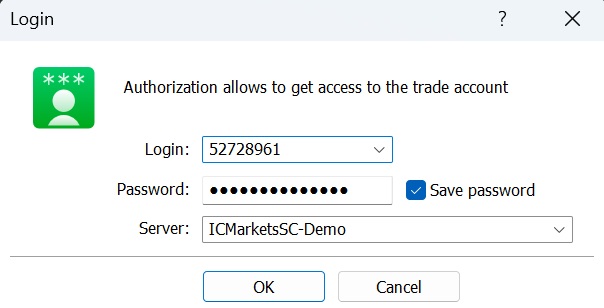
- Open the MetaTrader 5 application you installed.
- Look at the very top left of your screen and click on the word "File".
- In the menu that drops down, look down and click "Login to Trade Account".
- A small box will appear. Type in your Account Number and Password (you can find these in the welcome email sent by IC Markets).
In that same login box, there is a dropdown menu called "Server". You MUST click this dropdown and make sure it exactly matches the server name written in your IC Markets email (e.g., ICMarketsSC-MT5-Live12).
6. Network Security 🌐
Authorize the EA to communicate safely with our servers.
How to Authorize the Robot
- Look at the very top toolbar of MT5 and click on "Tools".
- In the menu that drops down, click the bottom option: "Options".
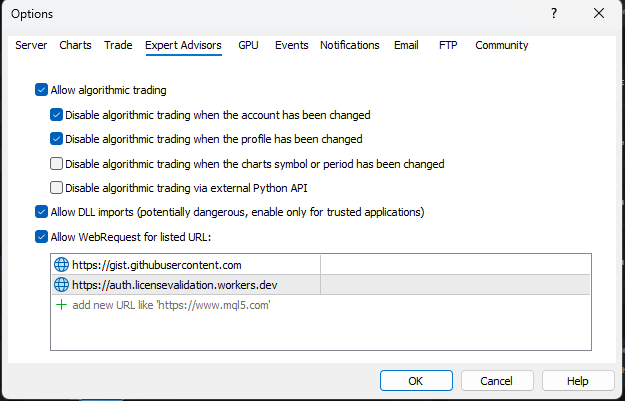
- A new window pops up. Look at the tabs along the top of this window and click the one that says "Expert Advisors".
- Check the small box next to: ✅ Allow Algo Trading
- Check the small box next to: ✅ Allow DLL imports
- Check the small box next to: ✅ Allow WebRequest for listed URL
- Double-click the little green '+' icon below that checkbox, type in the first URL below, and press Enter. Then double click the '+' icon again to add the second URL.
https://gist.githubusercontent.com
7. Install the Robot 🤖
Complete these precise steps to safely install the file.
Click the button below to save the .ex5 engine file strictly to your computer's "Downloads" folder.
In MT5, click File at the top left → click Open Data Folder. A standard Windows folder pops up. Double-click the yellow folder named MQL5, and inside there, double-click the yellow folder named Experts.
Copy the file you downloaded in Step 1, and Paste it into that open 'Experts' folder. Now, close the folder. Look at the bottom-left panel in MT5 called 'Navigator'. Right-click the 'Expert Advisors' folder icon and click Refresh.
Do NOT double-click the .ex5 file on your computer. Windows cannot open it directly and you will immediately get an error. You must paste it manually inside the MT5 Data Folder as shown above.
8. Activate on Chart 📈
The robot must be attached to a specific chart time.
1. Show Hidden Pairs
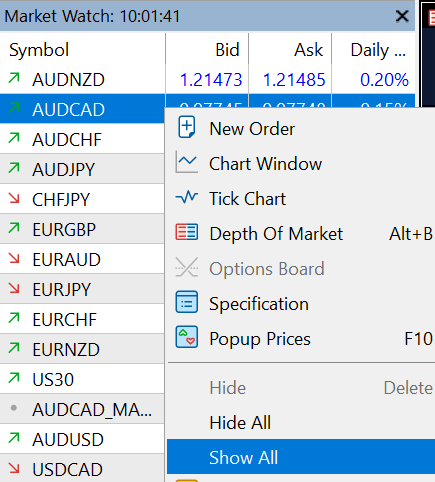
Look at the left side of MT5 for a panel called Market Watch (it shows a list of abbreviations like EURUSD). Right-click your mouse literally anywhere inside that white box. In the menu that pops up, scroll down and click "Show All".
2. Assign to Chart (Very Important)
- In the Market Watch panel, scroll down until you see AUDCAD. Right-click it, and select Chart Window to open the graph.
- Look at the toolbar above the graph. Find the button that says M15 and click it. This forces the chart to trade in 15-minute mode. Never change this timeframe once the bot is running!
- Now look at the Navigator panel on the bottom left. Under "Expert Advisors", click and hold "Kookoobot AI", then drag it directly onto your AUDCAD graph and let go of the mouse. Click OK on the popup.
- Finally, look at the very top toolbar of MT5 for a button that says "Algo Trading". Make sure it has a Green 'Play' symbol. If it is a Red stop square, click it to turn it green.
9. Strict Rules ⚠️
Read carefully to prevent self-sabotage.
If you have open (running) trades, doing a withdrawal is highly dangerous because it instantly reduces your available margin. Wait for ALL trades to close, then initiate your withdrawal.
Restarting & Updates
Can I restart my VPS or Windows? Only do this over the weekend when the market is completely closed (Saturday/Sunday) OR when there are zero running trades. Doing this mid-trade disrupts the mathematical logic.
Can I close trades manually?
It is heavily discouraged. The bot uses complex recovery mathematics. Manually interfering with trades breaks the net-profit engine.
10. Stay Informed! ✈️
Join our primary channel for software updates and market alerts.
Why Join Telegram?
- Critical Updates: Get notified immediately when a new EA version is released.
- Market Alerts: We post notifications when the AI detects extreme "Avoid" conditions.
- Support Community: Connect with other Kookoobot users and our tech team.
11. Instant Knowledge Base 📚
Ranked by priority. Please review these before starting the engine.
🚨 Level 1: Immediate Troubleshooting
This means "Algo Trading" is blocked. Ensure the main Algo Trading button at the top of MT5 is Green. Then, right-click your AUDCAD chart → Expert Advisors → Properties → Common tab → Check both "Allow Algo Trading" and "Allow DLL imports".
Your MT5 is not authorized to talk to our server. Go to Tools > Options > Expert Advisors. Check the box "Allow WebRequest for listed URL" and add these exactly:
https://auth.licensevalidation.workers.dev
https://gist.githubusercontent.com
Ensure you are logged into an IC Markets Live MT5 Raw Spread account. Standard accounts, demo accounts, and other brokers are not supported for the free license.
🧠 Level 2: AI Safety Logic
This is a Safety Feature. The AI has detected market panic or high-impact news. It stops all new trades to keep your money safe. It will resume automatically when the storm passes.
Brokers widen their fees (spreads) at midnight. The bot pauses during this time to prevent you from losing money to broker slippage. It resumes shortly after.
⚙️ Level 3: Essential MT5 Rules
• Timeframe: Use M15 only. Switching to H1 or D1 while the bot is active will break the logic.
• Market Watch: Right-click → "Show All" is mandatory to find the AUDCAD pair.
• Phone Monitoring: You can watch trades on the MT5 Mobile App by logging in with your IC Markets credentials.
💰 Level 4: Money Management
• Withdrawals: NEVER withdraw funds while the robot has open trades. This crashes your margin and causes a Margin Call.
• Balance: Maintain at least $1,000. Anything less is mathematically unsafe for the grid engine.
🛡️ Level 5: AI Philosophy
Kookoobot uses institutional "Footprint Tracking" to follow big bank movements and commodity data (Gold/Oil). It is designed to stay flat during high-risk weeks rather than gambling with your capital.